Using the Budget Screen in InfinitelyZero
Learn how to use the InfinitelyZero Budget screen to assign money, read Planned, Spent, and Available, move money, and handle overspending.
How the Budget works
InfinitelyZero uses zero-based, envelope-style budgeting: assign money you already have to account-backed categories. Groups organize the plan; categories are the digital envelopes. Assigning money lowers Ready to Budget without moving actual cash between bank accounts.
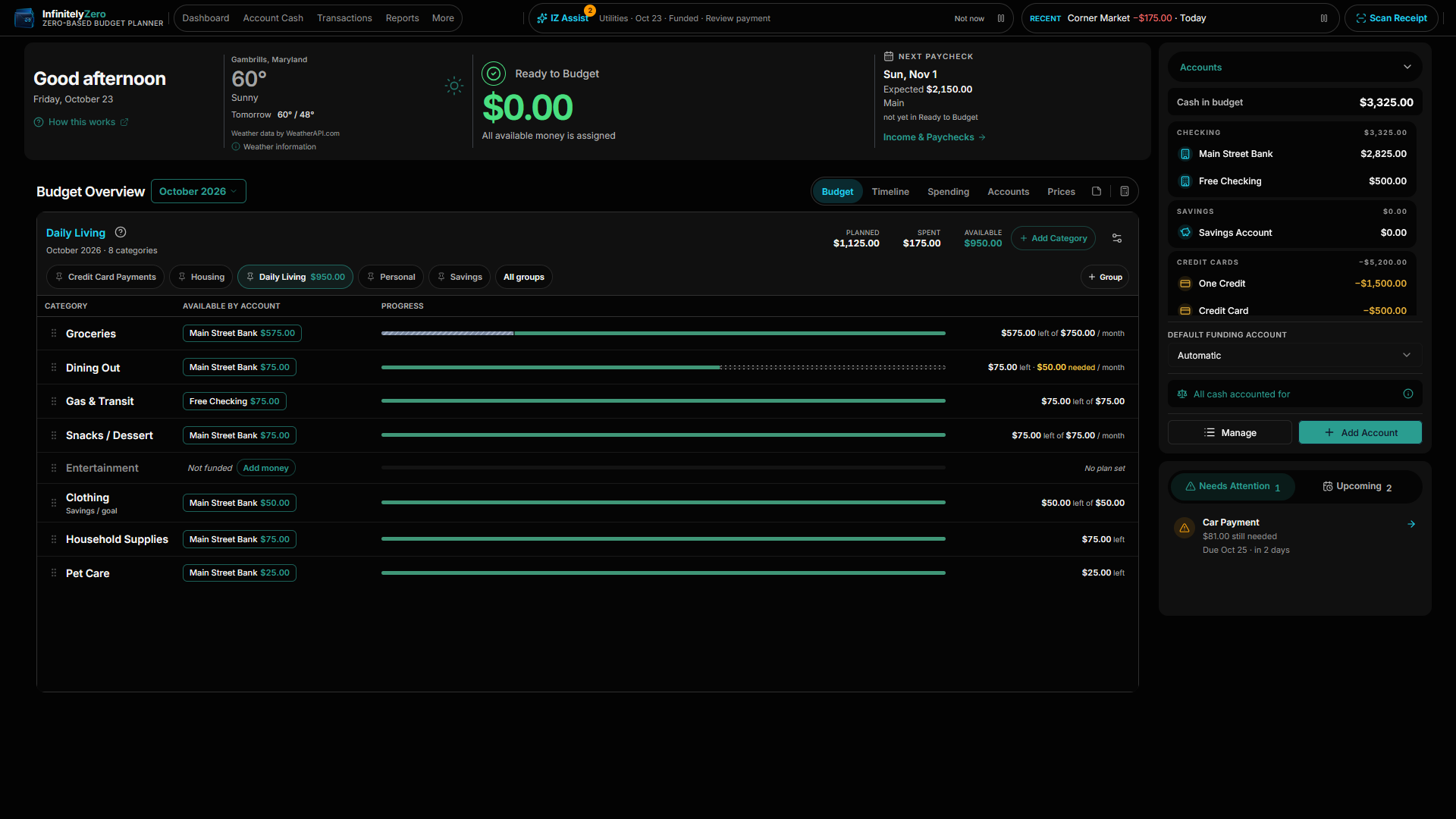
On web and Windows, the Dashboard Budget workspace shows category groups and rows beside the Accounts/action column. Planned is assigned for the selected month, Spent is recorded category activity, and Available is what remains. Use the month selector and group controls to review the same plan.
A practical Groceries workflow
- Open Budget and choose the month you are planning.
- Find Groceries in its budget group.
- Choose Assign money for Groceries, review From, the backing account, category and amount, then confirm.
- Record grocery purchases against the Groceries category as they occur.
- Review Spent and Available to see what has been used and what remains.
- If the plan changes, move Available money from another category or fund Groceries with newly available money.
This workflow changes the category plan and its supporting transaction activity. Assigning or moving budget money does not transfer cash between bank accounts.
Category detail
Category detail shows Planned, Available, Activity, plan/target context and supporting transactions. Linked Notes shows real notes attached to this category or bill, with Open in Notes and quick capture; it does not edit a separate category-note field.
Assign money handles both unassigned money and money already in another category. On a wide Dashboard it opens in the right-column action card; on narrower web it uses the corresponding side panel. Edit Category changes configuration, not transaction history.
Category settings
These settings help InfinitelyZero understand how the category should behave elsewhere in the app. Standard Spending is for regular or discretionary costs; Savings / Funding accumulates money; Bill / Payment represents recurring obligations. Essential marks must-pay priorities, while Flexible identifies spending that can be adjusted in existing guidance.
Funding plans describe the intended purpose: No funding plan adds no target; Monthly funding amount plans a recurring assignment; Minimum available balance maintains a floor; Spending Allowance sets a supported periodic spending amount. Paycheck Planning controls participation in paycheck planning, and Include in current plan controls whether the category participates in future plan needs. Hiding it from paycheck cards is a separate choice.
Together, these settings can feed existing funding needs, Paycheck Plan, forecasting, Cash Flow information, and upcoming obligations. They do not assign or move money by themselves.
Understanding the screen
The Budget screen is where you plan how your money will be used. It is organized into groups and categories, with three key numbers per category.
Budget groups
A budget group is a named collection of related categories. Groups help you organize your budget — common groups include Housing, Food, Transportation, and Savings.
Categories
A category is an account-backed envelope in your budget. The current table shows Category, Available by account, and Progress. Open category detail to inspect Planned, Available, Activity, and Spent. These terms keep the following meanings:
- Planned
- The money you have assigned to this category in the selected month.
- Spent
- The total of all transactions recorded against this category in the selected month.
- Available
- The money currently left in this category. Roughly: Planned − Spent, plus any unspent balance carried over from prior months.
Group totals
Each group header shows the summed Planned, Spent, and Available values for all categories within it.
Selected month
The Budget screen displays one month at a time. Use the month navigation to move between months. Each month has its own Planned values; Available carries forward from month to month.
Assigning money
Ready to Budget shows money available to assign. Its account chips show where that unassigned money is held. Aim to assign available money deliberately until Ready to Budget reaches $0.
From Ready to Budget
Open Assign money for the category. From starts with eligible Ready to Budget, preferring the target or preferred account. If no eligible Ready to Budget exists, From stays unselected. Choose a source, confirm its account, enter the amount and review the resulting category total before assigning.
From another category
Use the same From picker to choose transferable category money. Source limits and backing accounts still apply. To cover spending in one account, use money backed by that account first. If a permitted source is in another account, review the required real transfer and the checkbox “I'll transfer the actual money between my accounts to match this.” InfinitelyZero updates the budget; it does not send money between banks.
Reassigning category money
Use Assign money with a category selected in From to reassign its transferable Available to the target category. This changes the plan, not your bank balances. Review the selected month and source account before confirming.
Returning money
When an existing release or reduction action is offered, review its account attribution and the month where the released money will be available. Releasing money is distinct from recording a bank transfer, and protected cash cannot be released just to make a number fit.
Overspending
New manual cash expenses
A new manual on-budget cash expense dated today or later needs a funded category and enough backing in the selected payment account, including each positive split. If it cannot be recorded, keep the draft and choose a valid same-account assignment, a funded alternative account, or the real Transfer money workflow. Uncategorized cannot bypass this check.
Imported or past purchases
Imports, reviewed receipts and past purchases can record what actually happened. Their shortages or attribution warnings remain visible for review; the app does not invent backing or silently fund them.
Covering the flagged shortage
Open the existing Cover or Assign money action. Review the affected account and source, use eligible same-account money where possible, and confirm the amount. A different account’s cash is not automatically available to cover this one.
Credit-card spending
Unfunded credit-card spending creates uncovered card debt rather than cash reserved for payment. Review the linked payment category and fund the payment before paying the card; see Credit Cards.
Rollover
Rollover is what happens to a category's Available balance at the end of a month.
- Positive balances roll forward. If Groceries ends July with $45.00 Available, August starts with $45.00 already in that category.
- Negative balances may affect the following month. An uncorrected negative cash balance carries forward and reduces the effective Available in the next month.
- Planned reflects only the current month's assignments. Rollover is separate from what you assign this month.
- Available can include prior-month rollover. A high Available balance usually means money was assigned in past months and not spent.
Creating and organizing categories
Add a group
Use the Budget workspace’s group-management controls to create or organize groups. The chip row keeps selected groups easy to reach; +N more opens the searchable group picker. Credit Card Payments stays first. Pin or unpin other groups to choose which appear as chips.
Add a category
Inside any group, tap the add icon to create a new category. Give it a clear name that describes its purpose.
Rename
Long-press or use the category menu to rename any group or category at any time.
Reorder
Drag and drop categories or groups to rearrange them. The order is cosmetic and does not affect calculations.
Archive
Archive categories you no longer actively use. Archived categories keep their history and can be restored. They no longer appear in the main budget grid.
Icons
Assign an icon to a category to make it easier to recognize at a glance. Icons are optional and cosmetic.